2011年8月30日星期二

How to Convert DVD and Video to Any Video Format You Want Freely

Convert DVD and video is really easy for most of people now. You just need a DVD converter and a video converter. Use dvd converter to convert your DVD and use video converter to convert video. Do you want only one converter that can help you to convert both DVD and video in one interface with few clicks and high output quality. Today I will introduce you a Total Media Converter that convert both DVD and video.

You need to download and install it first before you can use it.

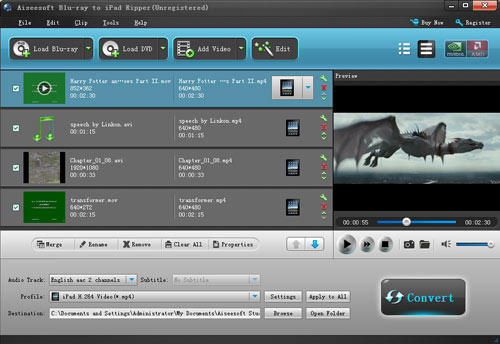
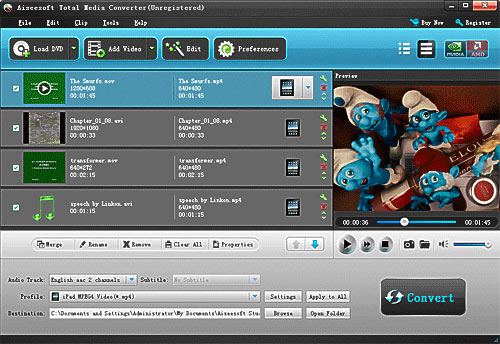
Step 1: Load DVD/Video
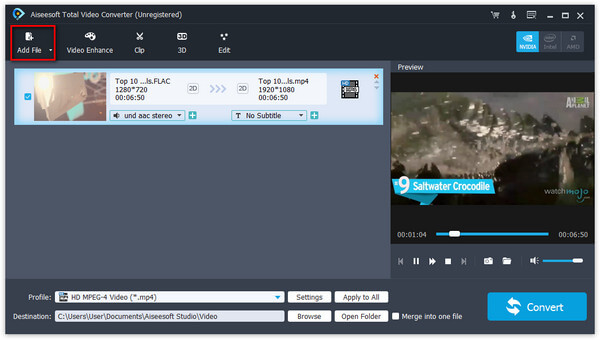
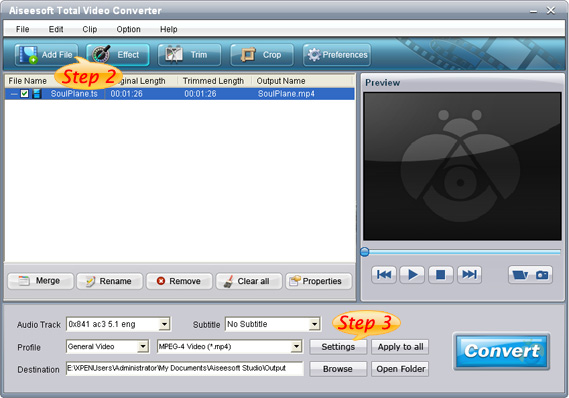
Click “Add File” to load Videos from your computer
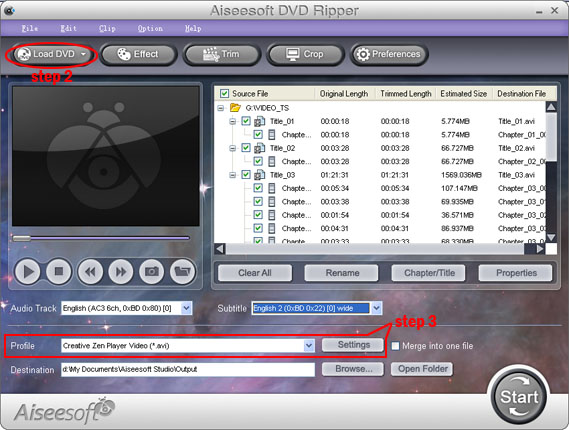
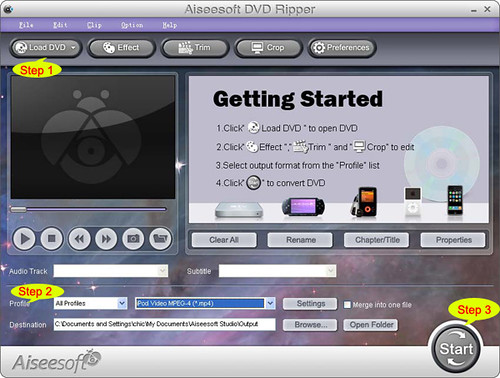
Click “Load DVD” to load your DVD from your DVD Drive

Step 2: Choose Output Info
a. Convert video:
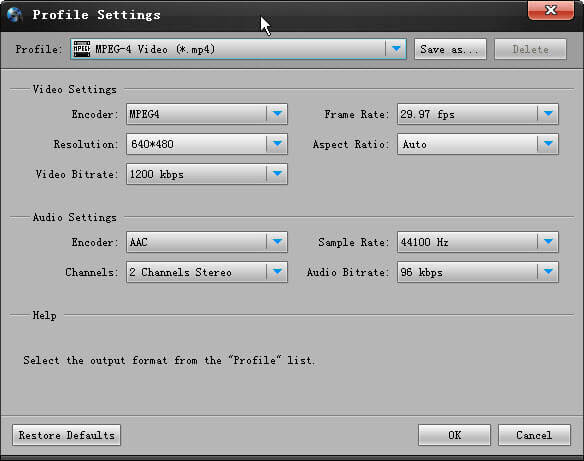
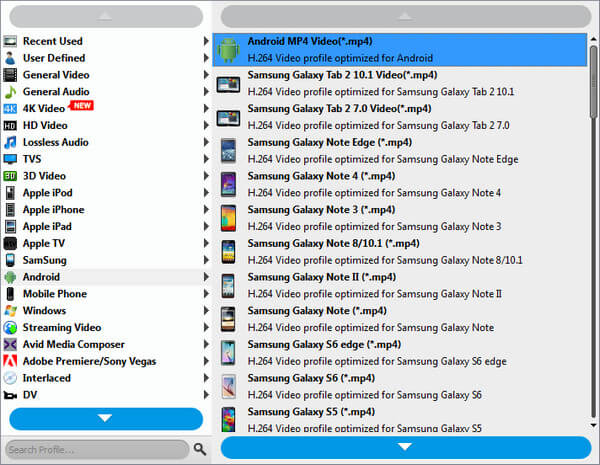
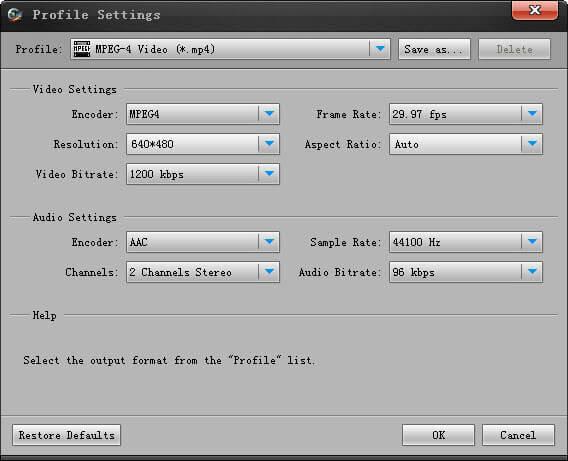
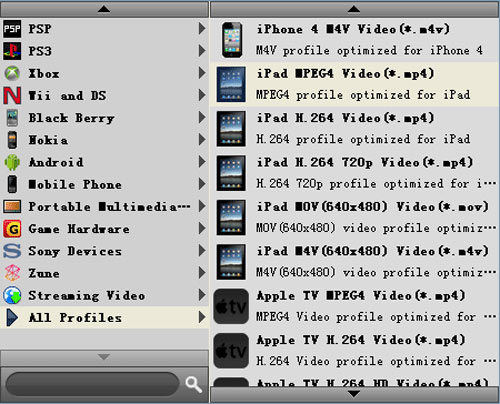
Choose output profile first in the drop-down list and then click “settings” button to adjust the specific settings, such as “resolution”, “encoder”, “bit rate”, “frame rate” and some audio settings such as “audio encoder”, “sample rate” and so on. You can save your profile and settings and give it a name, so you can use it next time easily.

b. Convert DVD
Choose output profile first and then you need to choose your output audio track and subtitle, if you do not want them you can leave them blank. Also like convert video you can adjust the specific output settings, such as “resolution”, “bit rate” and so on.
Save the profile and settings for next use is also available.

Step 3: Conversion
Click “Convert” button to start your conversion. You will get your output video soon.

Tips:

1. Adjust the output effect
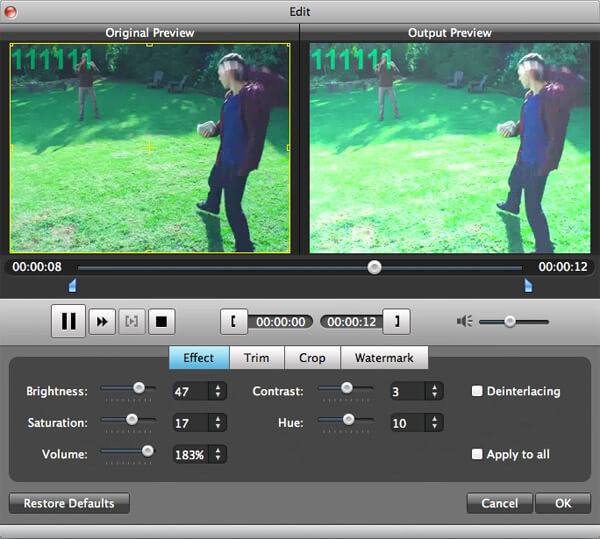
You are allowed to adjust the “Brightness”, “Contrast” and “Saturation” of the output video. “Deinterlacing” is also available to improve the quality of the output video. You can choose “apply to all” to save your time.

2. Pick up a part to convert
If you do not want to convert the whole video or DVD you can just pick up the part that you want to convert using “Trim” function.
You can do it in 3 ways:
a: Enter the start time in the Start Time box and click OK, then enter the end time in the Set End Time box and click OK.
b: Drag the scissors bars under the preview window when you want to trim, then the time will be shown in the Start Time box and End Time box for your reference.
c: While playing video, click “Trim From” button where you want to begin your trimming and click “Trim To” button where you want to stop your trimming.

3. Crop the output video
This powerful video converter allows you to crop the video play area. You can choose a certain play area to convert, and do snapshot.
You can crop your output video in 2 ways:
a: Crop by adjusting the crop frame
The crop frame is the yellow line around the movie video. There are eight small adjustment boxes on the crop frame. Each adjustment box allows you to crop the movie video from a different position. To crop your movie video, you can just move your mouse cursor to an adjustment box and drag the crop frame.
b: Crop by setting the crop values
There are four crop values on the buttom of the window: Left, Top, Right, Bottom. You can set each value to crop your movie video, and the crop frame will move accordingly.

You can also set the output aspect ratio from the Zoom Mode according to your need. There are four choices available: Keep Original, Full Screen, 16:9 and 4:3.

4. Add watermark to the output video
You can add text and picture watermark to your output video easily with Aiseesoft Total Media Converter.
Check the “Enable Watermark” box and choose “Text” or “Picture” as you want.
You can drag the watermark to find the place you want to put and also you can adjust the Font info of the words you from “T” button.

2011年8月27日星期六

How to Copy DVD/ISO image/DVD Folder to DVD/ISO image/DVD Folder for Windows/Mac

When you have bunches of DVD movies, it is really hard to take care of them. The disc is really easy to break. So make a copy of your DVD movies to another DVD disc or ISO image or DVD Folder. How?
When you have bunches of DVD movies, your friends must come and borrow your movies to watch. How to protect your movie disc from being broken? Borrow them a copy?
How?
When your family have a party and it is really sweet, everyone wants to have a copy of the party's video. But they make only one DVD of it. How to make everyone has the record of the happy time? Copy the DVD.
How?

These problems are easy to solve now, if you have this powerful DVD Copy Software.
It can help you to make copys of your DVD. If you want to backup your DVD movies, you can choose to copy the full disc or the main movie. It can also copy a DVD to ISO image and DVD Folder on your computer. Also it can copy your ISO image or DVD Folder to a DVD disc to play in DVD player.

Here is a simple guide for you to follow:
For Windows users:


Step 1 Choose Source:
The source of this DVD copy software can be:
1: DVD disc
2: ISO image
3: DVD Folder
Tip 1: The specific information of the DVD disc will be shown on the top-left of the interface.

Step 2. Preparation
Before you click the “Start” button,
1. You can choose to copy the full disc or the main movie.
2. You can choose the audio, subtitle of the copy.
3. You can change the name of the volume.
4. You can choose to “include menu” or “skip menu” or neither of them.

Step 3. Choose Target:
You can save your DVD movie as:
1: DVD disc
2: DVD Folder
3: ISO Image File

Step 4: Start Copy

Click “Start” button to start the copy.

Tip 2:
You can change the “Preference”, when you click “Edit” button.

For Mac users:

This DVD Copy for Mac software is the best DVD copy for Mac users.
Let's begin to copy DVDs:
Step 1: Download and install DVD Copy for Mac


Step 2: Load Your Source
This excellent DVD copy for Mac allows you to load DVD folder and DVD image ISO.

Step 3: Choose Output Info
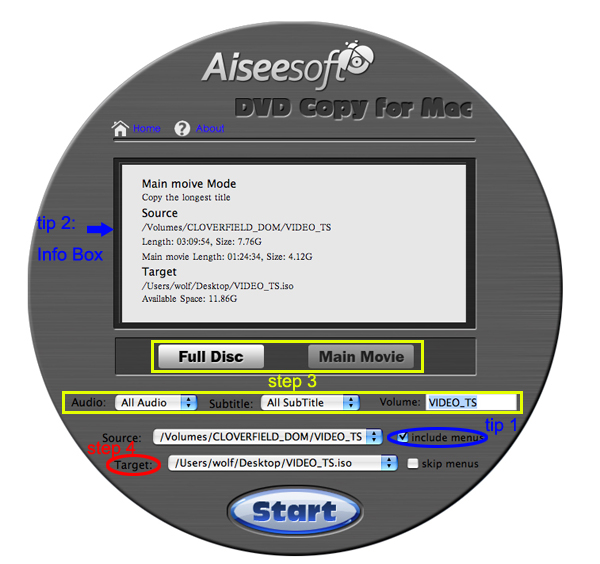
1. “Full Disc” or “Main Movie”
This DVD copy for Mac enables you to copy the full disc and also the main movie according to your need.

2. “Audio”, “Subtitle” and “Volume” name
You can choose your output audio from the “Audio” drop-down list, such as “all audio”/ “None”/ or some audio the DVD provide.

Subtitle is always an important thing, you can choose your output subtitle in “Subtitle” drop-down list.

You can also name your output volume's name

Step 4: Choose Your Target
You can copy your DVD to another DVD disc, DVD folder or DVD image ISO.

Tips:
1. You can also choose to copy the menus or not.
2. All the info you choose will be displayed on the “Info Box”.

2011年8月24日星期三

Aiseesoft Offers 15% Off Coupon Code for Back to School Sale

For all students, Aiseesoft prepares wonderful gifts for the new term with "Back to School Offer". In this special offer, Aiseesoft selects 30 professional assistant tools for iPad, iPhone and iPod. With these tools, users can conveniently enjoy any Blu-ray/DVD/video on iOS devices through converting them to the video formats supported by the devices. Now customers can get any one with the 15% off coupon code (AISE-BSH) from August 22, 2011 to August 31, 2011.

Aiseesoft iPad Converter Suite is an all-in-one software toolkit packed with DVD to iPad Converter, iPad Video Converter and iPad Transfer. It can help customers convert DVD movie and popular video files (AVI, FLV, SWF, MKV, MTS, etc.) to iPad compatible formats. Also it has powerful file transferring functions, which can help users transfer movie, music and photo files between iPad and computer.

AiseesoftDVD to iPad Converter , wonderful DVD/Blu-ray to iPad ripping software, is able to convert Blu-ray and DVD movie to iPad compatible MP4, M4V, MOV, etc. It can help customers remove the DRM protections from Blu-ray disc. And the powerful video editing features can assist users to get perfect output iPad files.

Aiseesoft iPhone to Computer Transfer Ultimate is a specialized transferring software which can assist user's transfer for all iPhone files, such as music, movies, TV shows, podcast, iTunes U, ringtone, ePub, PDF, audio books, camera roll, picture, voice memos, SMS, contacts, etc. to computer for backup. With it, customers will have no worry about missing any important files.

In a word, Aiseesoft "Back to School Offer" offers customers wonderful iPad/iPhone/iPod assistant software, which can help users fully enjoy their iPad, iPhone and iPod.

System Requirements for Windows Version

OS Supported: Windows NT4/2000/2003/XP and Windows Vista, Windows 7

Hardware Requirements: 800MHz Intel or AMD CPU, or above; 512MB RAM or more

System Requirements for Mac Version

OS Supported: Mac OS X v10.4 – v10.7

Hardware Requirements: 512MB RAM, Super VGA (800×600) resolution, 16-bit graphics card or higher

2011年8月20日星期六

How to convert Blu-ray movie to Motorola phone (Droid X2, Atrix, Milestone)?

For Motorola phone (like Droid, Milestone, Atrix, etc.) users, it is a pleasant experience to enjoy interesting movies on the wonderful smart phones with the powerful processor and large screen.

However, I have noticed a common question from the forums that some want to put their Blu-ray movies to their new Motorola Android phones for enjoying them during the journey or some boring situation. To solve this question, we need the help of Blu-ray to Motorola Phone Converter.

Now please follow this detailed guide to convert Blu-ray movie to Motorola phone with Aiseesoft Blu-ray to Motorola Phone Converter.

First, please free download the best Blu-ray to Motorola Phone Converter and install it on your computer.

Step 1: Load the Blu-ray files to Blu-ray to Motorola Phone Converter

After running this application, please click the "Load Blu-ray" button to load your Blu-ray movie to this Blu-ray to Motorola Phone Converter.

When all the M2TS files are loaded to file list, check the main movie to choose the subtitle and audio you need.

load Blu-ray to Blu-ray to Motorola Phone Converter

Step 2: Choose the output format for your Motorola phone

Click the drop-down list of the "Profile" to choose the proper output format. Here you can choose your preferred output format according to your Motorola phone. Take Motorola Droid as an example, you can choose "Android" > "Motorola Droid Video (*.mp4)".

choose output format

Step 3: Adjust the output settings

Click the "Settings" button to set the Video Resolution, Video Bitrate, Frame Rate, Encoder and Audio Channels, Sample Rate, Encoder, Audio Bitrate, etc.

adjust output settings

Step 4: Convert Blu-ray movies to Motorola phone

The last step is to click the "Convert" button to start converting Blu-ray movie to H.264 MP4 for Motorola Droid, Milestone, etc.

After the Blu-ray movie to Motorola conversion, you can transfer the output MP4 videos to Motorola phone via USB Cable.

2011年8月19日星期五

How to convert video to Motorola Xoom?

Motorola Xoom, armed with the advanced Android 3.0 Honeycomb operating system, is with a resolution of 1280x800. HD videos can be played perfected on Motorola Xoom so without doubt it is an ideal portable device for video playing.

However, the Motorola Xoom does not support all video and audio formats by nature. According to the specifications, Xoom compatible formats including AAC, H.263, H.264, MP3, MPEG-4, ACC+ Enhanced, OGG, MIDI, AMR NB, AAC+, etc.

So if you want to enjoy other video files, like AVI, MKV, MOV, FLV, VOB, WMV, AVCHD, etc. on Xoom, you need the third-party Xoom Video Converter to help you convert your video to Xoom compatible formats. Here I recommend you the professional Aiseesoft Motorola Xoom Video Converter, which is the powerful video converting tool to convert any popular video files to Xoom. Please follow this guide to convert your video to Xoom.

Step 1: Download and install the Xoom Video Converter

First, please free download this Motorola Xoom Video Converter and install it on your computer.

Step 2: Run the application and add video files

Click the "Add Video" button to input your source file. The added video will be listed on the program panel and you can change the file order, file name and get detailed information of the original file.

add video to Motorola Xoom Video Converter

Step 3: Select the target output format

Click on the drop-down list of "Profile" to select the suitable output format for your Motorola Xoom. For instance, you can follow "Android"> "Android MP4 Video (*.mp4)".

choose output profile

Step 4: Set specific video and audio parameters

If you have higher expectation on the output file quality, you can click "Settings" button to adjust audio and video parameters like Video Encoder, Frame Rate, Video Bitrate, Resolution, and audio settings, including Audio Encoder, Sample Rate, Channels, Audio Bitrate, etc. in the following popup window.

Step 5: Start to convert video to Motorola Xoom

After you have set up all the conversion settings, make sure that the added video is checked in the file list and then click the "Convert" button to start converting video to Motorola Xoom.

2011年8月18日星期四

Aiseesoft Releases a Series of iPad 2 Assistant Tools for Mac OS

To celebrate the coming of iPad 2, Aiseesoft has released a series of iPad 2 assistant tools for Mac OS, including several converting tools and file transferring software.

All together, Aiseesoft introduced 3 kinds of video converting software – Blu-ray to iPad 2 Ripper for Mac, DVD to iPad 2 Converter for Mac, and iPad 2 Video Converter for Mac. Aiseesoft iPad 2 Video Converter for Mac is the most professional video converting software for iPad 2 to convert any popular video format to iPad 2 on Mac. Aiseesoft DVD to iPad 2 Converter for Mac can help you rip any DVD movie to iPad 2 video and audio formats with perfect output quality. The Blu-ray to iPad 2 Ripper for Mac enables users to convert not only Blu-ray discs, but also DVD and video files to iPad 2. All this video converting software provides users with strong video editing functions (trim, crop, merge, watermark, etc.) to customize output video effect.

If users need help or have issues with file transfers between iPad 2 and Mac, Aiseesoft prepares the iPad 2 Manager for Mac, iPad 2 to Mac Transfer and iPad 2 ePub Transfer for Mac. The iPad 2 Manager for Mac can realize transferring files between iPad 2 and Mac. It can help users backup iPad 2 video, audio and image files to Mac and export local files to iPad 2. Also it can convert DVD/video/audio files to iPad 2 compatible formats while transferring. Aiseesoft iPad 2 ePub Transfer for Mac focuses its function on transferring ePub files between iPad 2 and Mac. With this software, users can conveniently enjoy ePub books on iPad 2 without worrying about files missing.

Aiseesoft iPad 2 to Mac Transfer is a one-way transferring tool. It can assist users with transferring iPad 2 files to local disk on Mac. Movies, music and photos can then be enjoyed on Mac and shared with friends freely.

Also, Aiseesoft has released a software package- iPad 2 Converter Suite for Mac, which is packed with DVD to iPad 2 Converter for Mac, iPad 2 Video Converter for Mac and iPad 2 Manager for Mac. With this all-in-one software, users can conveniently finish all multi-media processing operations and freely enjoy the wonderful iPad 2.

System Requirements

Processor: PowerPC® G4/G5 or Intel® processor

OS Supported: Mac OS X v10.4 - 10.6

Hardware Requirements: 512MB RAM, Super VGA (800×600) resolution, 16-bit graphics card or higher.

2011年8月17日星期三

Best iPad Converter Reviews


All of us who have got iPad are looking for best and easy converter programs with the enjoyment of iPad miracle. In this way it will become more convenient to enjoy music, movie video and ebook, etc.. I found several programs that are really easy to use.
No. 1 iPad Converter Suite
iPad Converter Suite is the first choice for all because it can rip DVD, convert video to iPad and transfer files from iPad to computer. Only program can do almost all things.


No. 2 Free iPad Video Converter
iPad Video Converter is a wonderful simple and easy iPad video converter. It can convert almost all video formats to iPad which lets you enjoy watching any video on your iPad anywhere and anytime.

No. 3 DVD to iPad Converter
DVD to iPad Converter is mainly to rip DVD for iPad to MPEG, MP4, AVI, WMV, RM, DivX etc..
In addition, these programs above are good video editor. They can trim, crop and add watermark to video. All are so easy to meet your requirement.


2011年8月16日星期二

How to Rip Blu-Ray DVD and Common DVD to iPad/iPhone/iPod

Blu-ray DVD is more and more popular among us since the images on Blu-ray disc are sharper, brighter, and more detailed than any DVD movie. What manufacturers are trying to do is to make the movie look as close to what you see in a real theater as possible.
It is a great choice to put Blu-ray DVD to iPad/iPhone/iPad. Aiseesoft Blu-Ray to iPad Ripper is the professional software that can rip Blu-ray DVD, common DVD and convert video to iPad/iPhone/iPod with good output quality, easily and fast.
How to Rip Blu-Ray DVD to iPad Format?

Tools you need:
1. Blu-Ray DVD Driver
2.Blu Ray to iPad Ripper
Preparation:
You need install and run this Blu-Ray to iPad Ripper


Step 1: Load your BD
Load your BD disc in to your Blu-ray driver.
Step 2: Output Profile
Choose your output profile from the drop-down list according to your need. You choose output format as your devices and also with specific video format.
You can also set the specific settings of your output video, such as “resolution” “video bitrates” “encoder” and so on.

After you have done all the tings above, you need to click the start button to convert your Blu-ray disc.

Tips:
You can also do many video editing works about your output video.

1. Effect:
You can adjust the “Brightness”, “Contrast”, “Saturation” of your output video and also you can select to use the “deinterlacing” function which make your video more enjoyable.
2. Trim
To pick up any part of your BD movie to converter, you can use “Trim” function.
3. Crop
You can choose any play area to convert by using the Crop function.
4. Watermark
You can add your own watermark on the output video, the watermark can be words and also picture. You can choose the font of your words and other really enjoyable function.

2011年8月15日星期一

How to Copy DVD/ISO image/DVD Folder to DVD/ISO image/DVD Folder for Windows/Mac

When you have bunches of DVD movies, it is really hard to take care of them. The disc is really easy to break. So make a copy of your DVD movies to another DVD disc or ISO image or DVD Folder. How?
When you have bunches of DVD movies, your friends must come and borrow your movies to watch. How to protect your movie disc from being broken? Borrow them a copy?
How?
When your family have a party and it is really sweet, everyone wants to have a copy of the party's video. But they make only one DVD of it. How to make everyone has the record of the happy time? Copy the DVD.
How?

These problems are easy to solve now, if you have this powerful DVD Copy Software.
It can help you to make copys of your DVD. If you want to backup your DVD movies, you can choose to copy the full disc or the main movie. It can also copy a DVD to ISO image and DVD Folder on your computer. Also it can copy your ISO image or DVD Folder to a DVD disc to play in DVD player.

Here is a simple guide for you to follow:
For Windows users:


Step 1 Choose Source:
The source of this DVD copy software can be:
1: DVD disc
2: ISO image
3: DVD Folder
Tip 1: The specific information of the DVD disc will be shown on the top-left of the interface.

Step 2. Preparation
Before you click the “Start” button,
1. You can choose to copy the full disc or the main movie.
2. You can choose the audio, subtitle of the copy.
3. You can change the name of the volume.
4. You can choose to “include menu” or “skip menu” or neither of them.

Step 3. Choose Target:
You can save your DVD movie as:
1: DVD disc
2: DVD Folder
3: ISO Image File

Step 4: Start Copy

Click “Start” button to start the copy.

Tip 2:
You can change the “Preference”, when you click “Edit” button.

For Mac users:

This DVD Copy for Mac software is the best DVD copy for Mac users.
Let's begin to copy DVDs:
Step 1: Download and install DVD Copy for Mac

Step 2: Load Your Source
This excellent DVD copy for Mac allows you to load DVD folder and DVD image ISO.

Step 3: Choose Output Info
1. “Full Disc” or “Main Movie”
This DVD copy for Mac enables you to copy the full disc and also the main movie according to your need.

2. “Audio”, “Subtitle” and “Volume” name
You can choose your output audio from the “Audio” drop-down list, such as “all audio”/ “None”/ or some audio the DVD provide.

Subtitle is always an important thing, you can choose your output subtitle in “Subtitle” drop-down list.

You can also name your output volume's name

Step 4: Choose Your Target
You can copy your DVD to another DVD disc, DVD folder or DVD image ISO.

Tips:
1. You can also choose to copy the menus or not.
2. All the info you choose will be displayed on the “Info Box”.

2011年8月12日星期五

How to convert video to iPad on Mac?

With the high-resolution screen Apple iPad provides users with perfect experience of enjoying video. To help Mac users enjoy any popular video files on this amazing iPad, Aiseesoft provide customers with a professional iPad Video Converter for Mac, which enables you to convert a wide range of videos for playback on iPad.

Now, I will show you how to convert any video to iPad on Mac. First of all, please free download this iPad Video Converter for Mac and install it to your Mac.

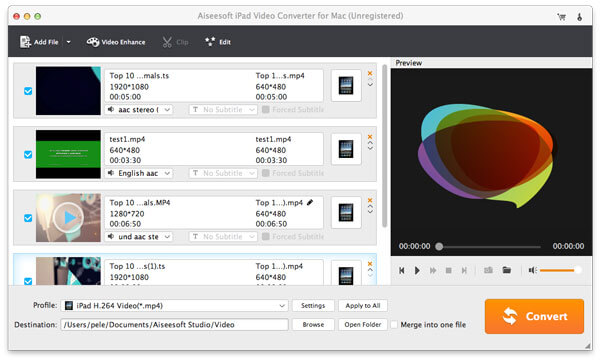
Step 1: Input video sources

Run this Mac iPad Video Converter and click the "Add File" button to input the video files you want to convert to iPad. And this application will list all input files on the interface.

input source video to iPad Video Converter for Mac

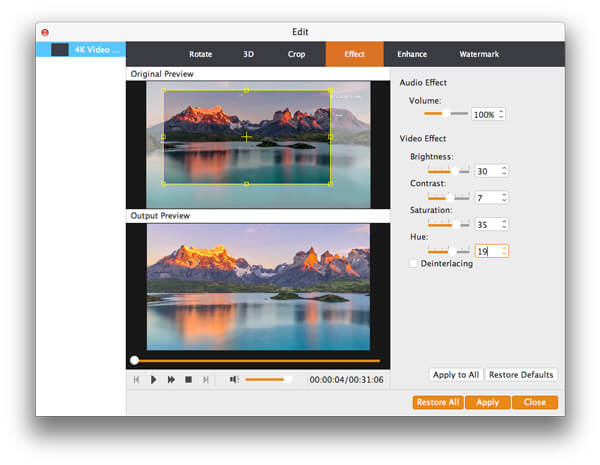
Step 2: Customize output video effect

If you are not satisfied with the source file, this powerful iPad Video Converter also provides you with amazing video editing features. With it, you can cut off any video segment and convert it to iPad, crop video frame, add watermark to your video, modify video brightness/saturation/contrast, and so on.

edit output iPad video

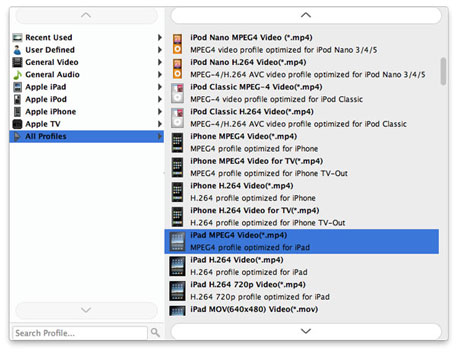
Step 3: Select output format

Click the "Profile" drop-down list and choose "iPad"> "iPad MPEG-4Video (*mp4)" for the output iPad video. If you want to set more parameters about the conversion, please click the "Settings" button.

choose output profile

Step 4: Convert video to iPad on Mac

After all these steps, you can click the "Convert" button to start converting video to iPad on Mac. And there will be a progress window for you to observe the whole converting process. When the conversion is finished, you just need to sync the converted video files to your iPad via iTunes.

Blu-ray to MKV Converter for Mac

2011年8月10日星期三

How to rip and convert Blu-ray to iPhone on Mac?

If you are trying to find the solution to rip/convert your Blu-ray movie to iPhone on Mac OS, this article will provide you with the best solution on how to rip and convert Blu-ray movies to iPhone video on Mac with Aiseesoft Blu-ray to iPhone Ripper for Mac.

First, you need to free download this Mac Blu-ray to iPhone Converter and install it.

Step 1: Run this Mac Blu-ray to iPhone Ripper, and load Blu-ray disc

After launching this Blu-ray to iPhone Converter for Mac, you can click the "Load Blu-ray" button to load your Blu-ray source file.

Blu-ray to iPhone Ripper for Mac

Step 2: Edit Blu-ray movie effect

This step is optional. If you want to customize your Blu-ray movie, this Blu-ray to iPhone Ripper for Mac owns powerful video editing features. With it, you can crop video frame, watermark video, modify video effect, trim video, join Blu-ray playlists together, etc. You can click the "Edit" button to do all these editing works.

edit Blu-ray effect on Mac

Step 3: Select output format for iPhone

Click the pull down menu of "Profile". There are multiple formats specialized for iPhone, you can select any one of them to meet your needs freely.

If you prefer to customize output settings, you can click "Settings" button to enter the window below, and adjust the parameters to your needed ones.

Step 4: Start ripping Blu-ray to iPhone

The last step is to click the "Convert" button to start to rip/convert Blu-ray movie to iPhone video.

Once the ripping task is completed, you can click the "Open Folder" button at the bottom of the main interface to get the final output Blu-ray movies files. Then you can transfer the output iPhone files to your iPhone with iTunes or out iPhone Manager for Mac.

Blu-ray Ripper for Mac

How to rip DVD, convert video, transfer iPod music and make iPhone ringtone for Windows/Mac

It includes 4 parts:
Part 1. How to rip DVD to iPod/iPhone/Sansa/PSP/Zune and other MP4 and MP3 Players
Part 2. How to convert all video to MP4, AVI, FLV, 3GP, WMV, MOV, MPG, RM, RMVB, MKV, VOB…
Part 3. How to transfer music from iPod to computer, computer to iPod, iPod to iPod
Part 4. How to make your own iPhone ringtone for free


Believe or not, to do the things above what you need is download Aiseesoft DVD Software Toolkit and few clicks.

Part 1. How to rip DVD to iPod/iPhone/Sansa/PSP/Zune and other MP4 and MP3 Players.

Step 1. Click “DVD Ripper” on the main interface to run Aiseesoft DVD Ripper.


Step 2. Open your DVD Drive and put your DVD in it, then click “Load DVD” and choose “Load DVD” to load your DVD into this best DVD ripper.

Step 3. Choose your output format from the “profile” drop-down list. This best DVD ripper provides you so many formats that out of your expectation, such as “iPod video MPEG 4 (*.mp4)”, “iPhone 3G MOV 640*480 (*.mov)” and so on.

After you choose your output format, you can adjust your output video’s settings, such as “Resolution”, “Frame Rate”, “Bitrate”, “Sample Rate” and so on.
Click “Start” now to begin your conversion and you will get your video soon.

To make your output movie more enjoyable you can do some editings to it through this best DVD ripper. You can choose a part of your movie to convert (trim), remove the black edges of your DVD movie (crop) and also adjust the effect (effect) and select subtitle and audio track.

Part 2. How to convert all video to MP4, AVI, FLV, 3GP, WMV, MOV, MPG, RM, RMVB, MKV, VOB…

Step 1. Click “Total Video Converter” on the main interface to run Aiseesoft Total Video Converter


Step 2. Click “Add File” to load the video you want to convert.

Step 3. Choose output format by clicking “profile” and customize your own output video by
clicking “settings” to adjust the Resolution, Frame Rate, Bitrate and so on.

Before you click “Start” to begin your conversion, you can do some editing works, such as pick up a part of your video to convert(trim), choose your own play region(crop) and put two or more files into one.(merge into one file).
OK, now you can begin your conversion

Part 3. How to transfer your songs and videos bewteen iPod and computer/iPod

First, Click “iPod Transfer” to run Aiseesoft iPod Transfer

Click “Computer to iPod” button, it will allow you to transfer songs and videos from your computer to iPod easily.

Click “iPod to Computer” button, it will allow you to backup your songs and videos from iPod to your computer.

Click “iPod to iPod” button, it will allow you to transfer songs and videos from one iPod to another iPod dirrectly.

Part 4. How to make your own iPhone ringtone for free

Download Aiseesoft iPhone Ringtone Maker


Step 1: Click “Browse” on the right side of "Input File" to import the file that you want to make ringtone from it.

Step 2: Play it and listen the music to find the segment that you want to use it as ringtone. Then drag and click the start & end slider to set your wanted segment, or type the start & end time in the corresponding text box directly to get the exact segment. You also can pre-listen the converted audio before generate.

Step 3: Click “Browse” on the right side of "Local Output Folder" to choose the output destination.

Step 4: Check "Export to iPhone" option, the converted ringtone will be load to your iPhone directly.

Step 5: After all the settings are finished, click “Generate” to begin making your own iPhone ringtone.

If you are a Mac user, I recommend you Aiseesoft DVD Software Toolkit for Mac
it has the same functions as the windows one. You can use it easy rip your DVD, convert your videos, transfer your iPod songs and videos bewteen iPod and your Mac and also make your own ringtone.

2011年8月6日星期六

How to convert Blu-ray to iPad for Mac users?

Do you want to enjoy Blu-ray movies on your iPad? For iPad users, some people many encounter the problem of how to convert Blu-ray disc to iPad. To help you solve this problem, Aiseesoft brings you the professional Blu-ray to iPad Converter for Mac. This software can help you conveniently convert any Blu-ray to MPEG-4, H.264, AVI, MOV, etc. that can be played by iPad.

Now I will show you how to convert Blu-ray to iPad for Mac users.

Step 1: Download and install Blu-ray to iPad Converter for Mac

First, you need to download Aiseesoft Mac Blu-ray to iPad Converter and install it. After launching the program, you can see the interface as below.

Blu-ray to iPad converter for Mac

Step 2: Load Blu-ray disc

Now, you need to load your Blu-ray disc. After inserting your Blu-ray disc to BD drive, you can click the "Load Blu-ray" button to input the Blu-ray movie. And all the playlists of the Blu-ray will display on the interface. And you can preview the Blu-ray movie with this Blu-ray to iPad Converter for Mac.

Step 3: Edit the Output Video Effects with the iPad Blu-ray Ripper

This Blu-ray to iPad Converter for Mac provides users with powerful Blu-ray movie editing features. Users can crop video frame, watermark video, merge Blu-ray playlists, trim video length, and even adjust Blu-ray movie brightness, saturation, contrast and so on.

edit Blu-ray effect on Mac

Step 4: Choose output profiles, audio track and profile

If the Blu-ray source owns more than one audio tracks and subtitles, you can choose your preferred one for the output iPad video. Also this Blu-ray to iPad Converter for Mac provides users with many output profiles. You can choose any one according to your need.

Step 5: Start to convert Blu-ray to iPad

After accomplish all the settings, you can click the "Convert" button to start to convert Blu-ray to iPad on Mac. And you can track the conversion process from the progress bar at the bottom of the interface.

After the conversion process is complete, you can transfer the output iPad files to your iPad with iTunes or our iPad Manager for Mac. Then you can enjoy the Blu-ray movies on your iPad.

Blu-ray Ripper

Blu-ray Ripper for Mac

2011年8月4日星期四

Full Guide: How to Convert DVD to MP4, AVI, 3GP, iPod ......

DVD is the first choice for many people when they want to watch movies at home. It has high quality picture, different subtitles and audio tracks and most important, some of the DVD movies are more enjoyable than than the cinema one.
However, when we travel, when the disc is broken, when we want to backup the DVD movies, when we want to share the movies with friends, when we want to make usage of the movie, what should we do?
Convert DVD to video video formats you need.

This guide aims to show you how to convert DVD to different video format both for windows/mac users.

Part 1: How to Convert DVD on Windows with DVD Ripper


Step 1: Load DVD
Put your DVD to your DVD Drive and click “Load DVD” button to add your DVD
Step 2: Choose Profile
Choose your output video profile from a drop-down list.
Step 3: Start Conversion

Part 2: How to Convert DVD on Mac with DVD Ripper for Mac


Step 1: Load DVD
Click the “Load DVD” button, find the DVD folder of the movie you want to add from your DVD-ROM, and Click “Open”.
Step 2: Choose output profile and settings
Selecting output format is really easy, you can chose your output format according to your devices players and the default setting works great.
For a veteran of digital player, you could customize your own settings by clicking “Settings” button to chose your own video resolution, frame rate, bit rate, encoder, etc.
Step 3: Start Conversion

If you want to convert both DVD and videos, here is a really powerful DVD Converter Suite . It can help you to convert DVD and videos easily. It can also help you to backup the iPod music and videos to your computer.

2011年8月1日星期一

How to convert DVD to iPod/iPhone/Sansa/PSP/Zune/iRiver/Google Phone/Cell Phone, etc. on Mac

Many people like enjoy movies at home and they have piles of DVDs. So do I. I like watch lastest movie on my new Mac and it is wonderful. However, I always break and lose my DVDs and I was really sad because they cost most of my money. Luckily, I find a way to store my DVD movies on my new Mac computer and evern put it on my iPod because I use a DVD Ripper for Mac and it can rip DVDs to so many video formats, such as AVI, MP4, MOV, MKV, WMV, DivX, XviD, MPEG-1/2, 3GP, 3G2, VOB and so on.

To do this you must have a nice dvd ripper for Mac. So I find Aiseesoft DVD Ripper for Mac

OK, let’s do it.
Step 1. Download and install Aisesoft DVD Ripper for Mac.

For Intel

For Power PC

Step 2. Load you DVD.
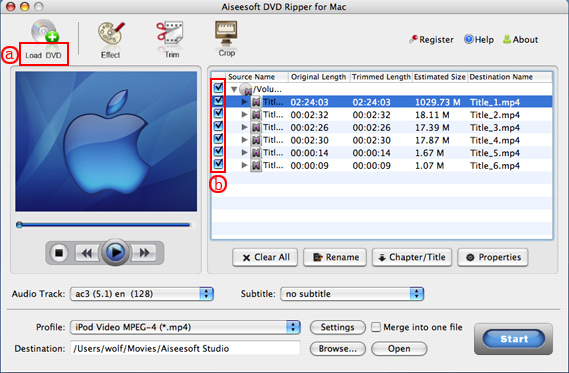
Click the “Load DVD” button(a), find the DVD folder of the movie you want to add from your DVD-ROM, and Click “Open”.


Tick the check boxes(b) before the titles and chapters that you want to rip.

Step 3. Chose output profile and settings.
Selecting output format is really easy, you can chose your output format according to your devices players and the default setting works great.

For a veteran of digital player, you could customize your own settings by clicking “Settings” button to chose your own video resolution, frame rate, bit rate, encoder, etc.

Tips: Sample rate (Hz) = any value up to 48000 (higher value = better sound quality = bigger file)
Bitrate (kbps) = any value up to 160 (higher value = better sound quality = bigger file)


After setting your own output and settings you can click “Start” button to start your conversion. (The time of the conversion depends on your DVD and the settings you chose.)

Do a few more clicks to make your movie more enjoyable.
1. Trim


If you want to rip only a part of the DVD movie, please click “Trim” button and drag the “Start trim slider” to set the start time and “End trim slider” to set the end time.(a). You can also do that by clicking the “Start trim button” and “End trim button”(b). The third way you do that is set the exact Start/End time at the right of the pop-up window and click “OK”.

2. Crop
If you want to remove the black edges or you want to rip a certain area of your video, please click the “Crop” button. You can do this either by drag the frame around the movie (a) or set the crop value: “Top, Left, Bottom, Right”.(b). Another way to do that is choose mode from “Crop Mode”(c).
Aiseesoft DVD Ripper for Mac also allows you to choose the output aspect ratio above the crop pane, “Keep Original, full screen, 16:9 and 4:3” are available.

3. Effect
If you want to adjust the effect of your movie, please click the “Effect” button and a pop-up effect window will appear. It allows you to edit your movie’s effect including “Brightness, Contrast, Hue, Saturation and Volume”.

4. Merge into one file/audio track/subtitles
If you would like to put several titles and chapters into one output file, please tick the check box of the “Merge into one file”.
You can choose audio track and subtitles you like according to what you prefer and the DVD supports.

Follow what I said above I hope you could enjoy your DVD movies on your Mac and also on your iPod and other portable players