2010年6月29日星期二

How to Put Youtube videos on iPod, PowerPoint ,etc for free

This guide will show you how to download video content from numerous sites (youtube, Google Video,etc) and convert videos to iPod on Mac using two methods. It is pretty simple for according to the following statements.
iPod, iPhone accepts mp4 video detail as follow: MPEG-4 video, up to 2.5 Mbps, 640 by 480 pixels, 30 frames per sec., Simple Profile with AAC-LC audio up to 160 Kbps, 48 kHz, stereo audio in .m4v, .mp4, and .mov file formats.
PPT accepts: mpeg, asf, avi, wpl. wm, wmx, wmd, wmz, dvr-ms, mpv2, mp2v, mov, etc

1. Using free online YouTube converter
The first method is using a website to convert youtube video to iPod or powerpoint for free, Of course, you can also convert other media videos.
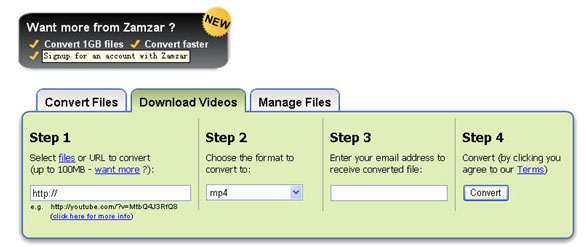
This is good for you when you only have one file to convert or you can't install the programs necessary for conversion. My favorite is zamzar converter.
You don't even need to download the video file to your computer. Enter the URL of the video to the box, choose the format you want to convert youtube videos to (iPod accepts mp4 video. So choose the format 'mp4'), and Enter your email address , then click 'convert'. The output file will be sent to your mailbox after the conversion.

zamzar converter

Another free online converter I like is media convert.
But you can't convert big video files using free online converters. It is up to 100MB. And the quality of the output files is so.

Tip: How to put pictures and photos to iPod, iPhone
1. Download iTunes from http://www.apple.com
2. Plug your iPod in to iTunes
3. Make a folder on the computer with all of the photos you want on your iPod (Name it something you with remember!)
4. Click on the iPod icon in iTunes
5. Click on the Tab "Photos" on the top.
6. Check the box "Sync photos from:"
7. Chose the folder all of your photos are in.
8. Click apply, then eject your iPod and enjoy your photos!

2. Using iPod video converter for Mac
The Second Method is using iPod video converter software to convert Youtube videos to iPod on Mac for free.
For this you need the following:
1. A video to download.
2. iPod Video Converter (Mac OS X version / Windows PC version).
Step 1: Download the videos
The downloaded file might be two formats: avi and flv . iPod and iPhone only support mp4 format. So you need to convert the videos to MP4 files.
PowerPoint understands .avi. If it the file is .avi, you do not need to convert it to put it on PPT. But most videos will probably be in .flv format. You can't embed Flash in PowerPoint. These will need to be converted to .mpeg or .avi format.
To do these conversions, you will need video converter which is capable of doing the conversion.

Step 2: Converting The Video to iPod, iPhone, Powerpoint, etc
Great, now you have located the file and downloaded it to the desktop. What's next? Well, you need to open up your freshly installed Aiseesoft Video Converter for Mac.
Click the "Add File" button to add the video files that get from the video sites to the program by automatically selecting an appropriate encoder for the video files you want to convert to.
Select the output format on the output format list. Aiseesoft iPod Video Converter for Mac can convert videos to almost all popular video players like iPod touch, iPod classic, iPod nano, iPhone, Apple TV, PSP, PS3, Youtube (web), Creative Zen, iRiver PMP, Archos, various video mobile phones and many other digital video and audio players. If you want to put videos to PowerPoint, you need to convert the videos to avi or mpeg formats.
This process only lasts a few minutes at the most.
If you want to convert several videos into one file, what you need to is to click'merge into one file' option . As we know, the mp4 format is high conpatible with iPod, iPhone, Apple TV, PSP, so it the best format for converting to iPod, iPhone, etc.

How to use DVD decypher to rip DVD to iPod, PSP, PowerPoint etc on PC

1. Use DVD decypher to rip DVD to VOB files.
DVD Decrypter is a free DVD ripper that can create backup disc images of the DVD-Video structure of DVDs. It can be used to image any DVD, but controversially it is especially useful for decrypting copy-protected movies. The program can also burn images to disc. CSS decrypting software (such as DVD Decrypter, AnyDVD, Smartripper, and DVD Shrink) allows a region-specific DVD to be copied as an all-region DVD. It also removes Macrovision, Content Scrambling System (CSS), region codes, and user operation prohibition.
Step 1. Install DVD decypher
Download it from: http://www.dvddecrypter.org.uk/. To install DVD decypher, simply mount the .exe archive by double-clicking it, and setp by step to click "next".
Step 2. Rip DVD using DVD decypher
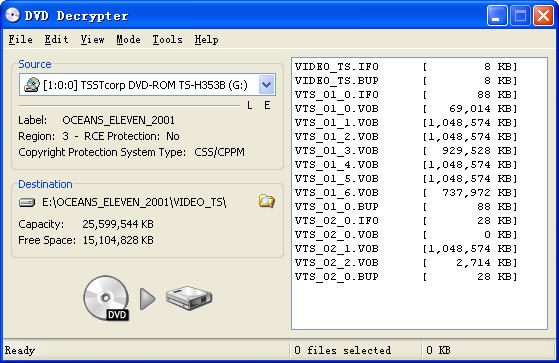
After you insert a movie DVD into your DVD burner or player, launch DVD Decrypter. In the window to the right you will see all the files on that DVD.DVD decypher

NOTE: If the files are not shown in the right window pane, on the Task Bar, click on Mode and click on FILE F to place a checkmark beside it as shown in the picture above.
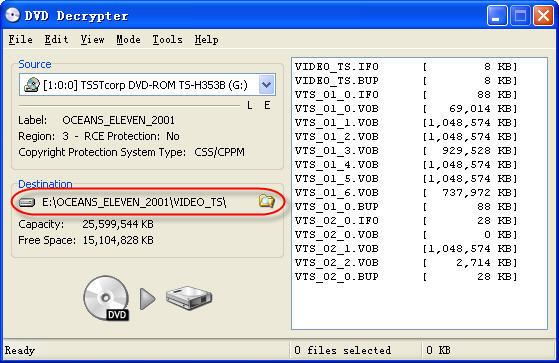
You can choose the output folder by:
Under "Destination", click on the Folder out to the right of the movie path, locate the folder you want to rip the DVD to, then double left click on folder to open it then click OK.

DVD Decrypter

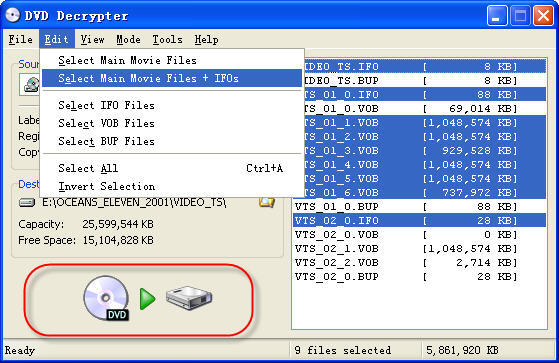
You can select to rip the whole DVD or choose to rip a segment of the DVD.
Explanation:
.IFO = The IFO files includes information such as chapters, subtitle tracks and audio tracks.
.VOB = The VOB files contains the actual video, audio, subtitles and menus.
.BUP = Backup files of the IFO files.

DVD Decrypter - file explanation

Step 3. Finish conversion
Click on the Hard Drive Symbol to the right of the green arrow. After clicking on the Hard Drive Symbol, you will have the screen which shows the decryption in progress.
After conversion by this free DVD ripper, you can find the VOB files in the "Destination".

2. Convert the .VOB files to video formats compatible with iPod, iPhone, PSP, PowerPoint, etc.
Now you need to use Aiseesoft Total Video Converter to convert .VOB files to formats compatible with popular players such as iPod, iPhone, Apple TV, PSP, etc. You can also upload the converted files form DVD (.VOB) to YouTube, Myspace, and other video sharing site. YouTube accepts a wide range of video file formats such as .WMV, .AVI, .MOV, and .MPG, etc. PowerPoint understands mpeg, asf, avi, wpl. wm, wmx, wmd, wmz, dvr-ms, mpv2, mp2v, mov, etc. If you want to put the VOB files on PowerPoint, you can choose .avi as output format.
Step 1. Download and install Aiseesoft Total Video Converter.
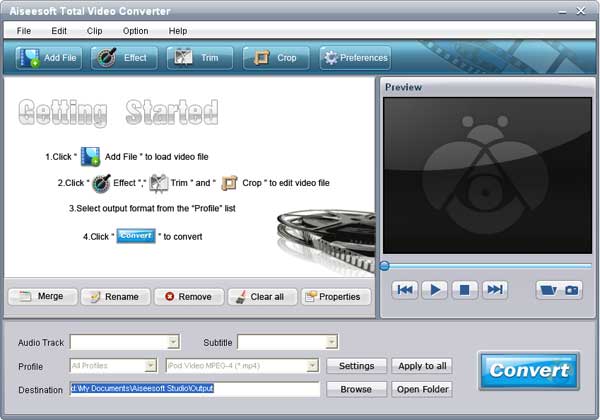
Step 2. Run Aiseesoft Total Video Converter, click "Load DVD" button to import the .VOB files, choose the output format, then click "Start" to start the conversion, the default setting works perfectly.

Total Video Converter

Step 3. After conversion finished, you can use transfer the converted files to the players.
For example :
use iTunes to transfer the mp4 video to your iPod, here are the steps:
1). Open iTunes and click "File" to add your converted videos to iTunes library.
2). plug in your iPod to computer, then iTunes will detect your iPod as a device.
3). Select your iPod device on the left panel of iTunes, click "Movies" tab, check the videos you want to sync and click "Apply", done.
Use Zune software to transfer wmv video to Zune player, here are the steps:
1). Install Zune software, you can download it from here for free: http://www.zune.net
2). Plug in your Zune player to computer
3). Drag the wmv video to Zune library
4). Click "start sync" to sync your Zune. OK.
Tips: Aiseesoft DVD Ripper can rip DVD to all popular video and audio formats directly. It can rip DVD to videos including MP4, AVI, M4V, 3GP, MPG, MPEG, FLV, etc; and it can convert DVD audio to MP3, M4A, AAC, AC3, etc. And it is more easy to use than Mac the ripper. You can have a try.

2010年6月27日星期日

How to Put Photos on a PSP

What you need?
1. A PSP
2. A computer
3. A PSP to computer cord
4. Photos you want on your PSP

Step1, On your computer you will need to find the pictures that you want on your PSP.
Step2, You will need to create a folder on your desktop called PHOTO all in capital letters. Then, drag and drop the picture(s) you want on your PSP into this folder.
Step3, You will need to plug your PSP into the computer using the PSP to computer cord. Then, on your PSP go under the settings menu, and select the option that says USB connection. You should now be in USB mode on your PSP. .Now that your PSP is in USB mode, the computer should recognize it and open an options menu.
Step4, Your computer is displaying an options menu, select the option that says open folder to view files. Now, your computer should be displaying the folders on your PSP.
Step5, Open the folder that says PSP. Now, your computer should be displaying the folders inside of the folder named PSP.
Step6, Drag and drop the folder named PHOTO - the one with your picture(s) -into the folder named PSP, the one you are viewing. You're done; you've found out how to put pictures on your PSP. Now, go show your picture(s) off to friends, family, and whom ever you want.

Recommended Products For you:
DVD to PSP Converter for Windows
Aiseesoft DVD to PSP Converter for Windows is a professional application that is designed to convert DVD movie to PSP on PC.
PSP Movie Converter for Windows
Aiseesoft PSP Movie Converter is a professional video to PSP converter for Windows that can convert all sorts of video formats to PSP video on PC.

2010年6月25日星期五

Tech Stocks’ Weak Month and 2010–Except for Apple, That Is…

Consumer-leaning tech stocks continue their year-to-date declines as June nears its end, with shares of a range of big names off.

That is, except for Apple, which continues to be the darling of investors.

It’s up 8.7 percent over the last month and 18.6 percent since January.

That is in stark contrast to: Google (GOOG), down 1.1 percent for the month, 23.9 percent year-to-date; Microsoft (MSFT), down 4.9 percent and 18.6 percent YTD; Yahoo (YHOO), down 4.3 percent and 12.7 percent YTD; Amazon (AMZN), down almost 4 percent and 10.9 percent YTD; and eBay (EBAY), down 4.3 percent and 12.2 percent YTD.

For the full year, though, everyone is up decently, due to weaker comparisons, with Apple (AAPL) leading the pack again with a 90.5 percent rise.

The exception: Yahoo, which is down 5.7 percent year-over-year.

Apple on iPhone 4 Reception Problems: You’re Holding It Wrong

Does the design of the iPhone 4’s antenna contribute to lower signal reception? No more so than any other antenna design, says Apple (AAPL).

Responding to complaints about weakening signal strength when the iPhone 4 is held in a particular way, the company said such issues are common to all cell phones. Its suggested solution for those experiencing the problem: Hold it a different way–specifically, in a way in which your hand doesn’t simultaneously cover the two antennas built into the steel band that encircles the phone’s exterior.

2010年6月22日星期二

New iPhone Keeps Apple Top of Class

While attractive, capable new smartphones emerge regularly from competitors, a new iPhone deserves special attention for two reasons. First, the device lies at the center of a huge ecosystem of 225,000 apps, plus popular related gadgets like Apple’s iPod Touch connected media player and iPad tablet, which collectively are approaching 100 million units sold. Second, the iPhone’s multitouch, gesture-based interface; elegant Web browser; sophisticated music and video playback; and other features have been emulated on many competing devices, so what Apple does affects the whole industry.

I’ve been testing the iPhone 4 for more than a week. In both hardware and software, it is a major leap over its already-excellent predecessor, the iPhone 3GS.

It has some downsides and limitations—most important, the overwhelmed AT&T network in the U.S., which, in my tests, the new phone handled sometimes better and, unfortunately, sometimes worse than its predecessor. I’ll get into that below. But, overall, Apple (AAPL) has delivered a big, well-designed update that, in my view, keeps it in the lead in the smartphone wars.

The iPhone 4 is a dramatic redesign. It manages to pack a radically sharper screen; a second, front-facing camera; a larger battery; a better rear camera with flash; and a faster processor into a body that is 24% thinner, a bit narrower, and retains the same length and weight as its predecessor’s. In fact, Apple claims that the iPhone 4 is the world’s thinnest smartphone and sports the world’s highest-resolution smartphone screen.

With the front-facing camera, and clever new software called FaceTime, Apple has brought simple, high-quality video calling to mobile phones, albeit, for now, only over Wi-Fi and only among iPhone 4 owners. In multiple tests, this feature worked very well for me and is a classic example of the value of having one company do integrated hardware and software.

In addition, the iPhone now includes an updated operating system—which also can be installed free on the prior model—that introduces catch-up software features such as limited multitasking (the ability to run apps simultaneously); folders for grouping related apps; and, for email, a unified inbox for multiple accounts and the ability to present messages as threaded conversations. This software is called iOS4.

The iPhone 4 will cost the same as the iPhone 3GS: $199 for a model with 16 gigabytes of memory and $299 for 32 gigabytes, with a two-year contract from AT&T (T). The 3GS model will drop to $99 with a two-year contract and 8 gigabytes of memory.

Design

Physically, the iPhone 4 is attractive and feels great in the hand. Even the back is now clad in glass, which Apple claims is a superstrong variety 30 times tougher than plastic. I dropped it several times from a few feet onto a hard surface with no problem, and it acquired no scratches at all in my testing, even though I didn’t use a case or coddle it.

Although it is the same weight as its predecessor, the iPhone 4 feels denser and tighter—more like a fine possession than a disposable gadget. It still looks like an iPhone, but it manages to make the 3GS appear bulbous by comparison.

While its 3.5-inch screen, once considered huge, is now smaller than those on some other smartphones, the high resolution packs in a lot of material and makes text appear almost like ink on fine paper. The software is simply richer looking and smoother to use than on competing phones I’ve tested, with fewer confusing menus and settings, and far more apps.

Screen, Voice, Battery and Camera

Always brilliant at marketing, Apple has dubbed its new screen the “Retina display.” At a resolution of 960×640, it has four times the pixels of its predecessor and displays a whopping 326 pixels per inch. I don’t know how it compares with the human retina, but I do know that, just as Apple claims, text on the screen shows no jagged lines, even when expanded to giant size.

Voice quality was quite good, even on long speaker-phone calls, and data performance over Wi-Fi was excellent. Video and audio streamed from the Web played smoothly.

Apple claims longer battery life for most functions—seven hours of talk time, for instance, versus five hours on the earlier model. I didn’t perform a precise battery test, but, even in heavy use, the iPhone 4’s battery never reached the red zone on a single day of my tests.

The new rear camera is another big plus. My test pictures came out sharp and clear, even in low light and close-up situations. It isn’t the best cellphone camera I’ve tested, but it is a big improvement.

The iPhone 4 records video in high definition and, in my tests, these videos came out very well in most conditions. Apple also is selling for $5 an iPhone version of its Macintosh video-editing program, iMovie, for editing the videos.

FaceTime

Video calling is one of this device’s best features. As noted, it currently requires an iPhone 4 and Wi-Fi connection on both ends, though Apple says it is making the technology free to others and hopes to have millions of compatible devices. There is no setup and nothing to learn. You just press a FaceTime button, and if the other person accepts the invitation to talk face to face, his or her image appears, with your own image showing in a small corner window.

You can tap an icon on the screen to swap the front camera for the rear one, so you can show your caller around the room, or include other people near you who are behind the phone.

You can even begin a video call as an audio cellular call, push a button, and switch it to a Wi-Fi FaceTime call. It worked great for me, except for a couple of brief freeze-ups.

Multitasking

After years of complaints, Apple finally has brought multitasking to the iPhone. But it has done so in a limited way that won’t please everyone. On the iPhone 4, multitasking doesn’t mean every app can work fully in the background. To prevent a disastrous drain on battery life, Apple has allowed only certain apps to fully multitask. These include streaming audio services like Pandora, which keep playing music from the Web while you do other things, and voice-prompted navigation apps, which keep working while you’re on a call. Others that fully work in the background include Internet calling apps, and those that perform long downloads.

ptechJ1

But some logical candidates, such as Twitter and Facebook, merely pause in place when you switch away from them. You can get back to them quickly, and they update more rapidly than before, but they don’t constantly update in the background. They only wake up in the background if you have set them to notify you of an update, and then only for a limited time. Apple says constant fetching of hundreds of social-networking updates in the background would kill the battery too quickly.

In fact, for many scenarios, such as games, Apple’s version of multitasking is really just fast switching among open apps that save their place. And, even to achieve this, the apps must be updated. For some users, this limited version of multitasking will be a disappointment.

To use multitasking you just press the iPhone’s home button twice and a row of icons representing running apps appears. Click on the one you want and, if it has been updated for the new operating system, it will appear just as you left it.

Multitasking also will work on updated iPhone 3GS models, but not on models older than that.

Folders

Because iPhone users can easily accumulate hundreds of apps, it can become difficult to organize them. So the new iPhone OS now allows you to group them into folders. For instance, I grabbed the icon for The Wall Street Journal app, dragged it on top of the one for the Washington Post app, and a folder was instantly created called “News,” based on the apps’ built-in categories. You can change the name to anything you like, or alter or disassemble the folders.

The Big Downside

The most important downside of the iPhone 4 is that, in the U.S., it’s shackled to AT&T, which not only still operates a network that has trouble connecting and maintaining calls in many cities, but now has abandoned unlimited, flat-rate data plans. Apple needs a second network.

Both Apple (AAPL) and AT&T (T) told me they worked to make the iPhone 4 do a better job with AT&T’s network. For example, the phone itself is surrounded by a prominent stainless-steel trim piece that acts as a large antenna. And Apple said it also tuned the phone to try to grab whatever band on the network was less congested or less affected by interference—to stress the quality of a signal over its raw strength. AT&T said it, too, made some changes to its network with the new iPhone in mind.

But, in my tests, network reception was a mixed bag. Compared with the previous model, the new iPhone dropped marginally fewer calls made in my car, both in Washington and in Boston, and was much louder and clearer over my car’s built-in Bluetooth speaker-phone system.

Yet, in some places where the signal was relatively weak, the iPhone 4 showed no bars, or fewer bars than its predecessor. Apple says that this is a bug it plans to fix, and that it has to do with the way the bars are presented, not the actual ability to make a call. And, in fact, in nearly all of these cases, the iPhone 4 was able to place calls despite the lack of bars.

However, on at least six occasions during my tests, the new iPhone was either reporting “no service” or searching for a network while the old one, held in my other hand, was showing at least a couple of bars. Neither Apple nor AT&T could explain this. The iPhone 4 quickly recovered in these situations, showing service after a few seconds, but it was still troubling.

Just as with its predecessors, I can’t recommend this new iPhone for voice calling for people who experience poor AT&T reception, unless they are willing to carry a second phone on a network that works better for them.

For everyone else, however, I’d say that Apple has built a beautiful smartphone that works well, adds impressive new features and is still, overall, the best device in its class.
How to watch and play Internet videos on iPod touch and iPhone(3G)

Why do iPod touch and iPhone(iPhone 3G) can not play internet video besides youtube? The reason you can't view videos from other videos sites besides youtube is that they run on something called "Flash". iPhones and iPod Touches can't support Flash because of their software. This is why Apple created the YouTube application on your home screen.
Luckily, someone has done their best to fix this problem.
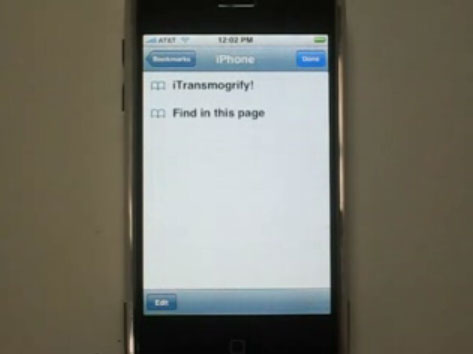
iTransmogrify! is a bookmarklet for iPhone and iPod touch which transforms embedded Flash content into direct links to natively supported formats. That means YouTube videos and MP3s can now be played from the iPhone's Safari web browser with just a few clicks. The iTransmogrify! bookmarklet recognizes and converts a variety of embedded Flash content from web pages so they will play on iPhone and iPod touch.
Currently supported formats include: YouTube, embeds and YouTube pages, Blip.tv, Revver, TED talks and embedded TED talks, Many embeded flash MP3 players ,Kink.fm podcasts, Flickr badges (videos are unsupported) , The Test Suite has more sites.
To install the bookmarklet, just drag the link to your Safari or Firefox Bookmarks, IE users should right click and choose “Add To Favorites” After adding the link, sync your iPhone or iPod touch.

play internet video on iPod touch, play internet video on iPhone

Grab it now: iTransmogrify!
You can also add iTransmogrify from your iPhone!
Then, whenever you find a broken video, just select the bookmark to convert it.
Now, you can watch and play internert videos such as Blip.tv, Revver, TED talks and embedded TED talks, Many embeded flash MP3 players, Kink.fm podcasts, etc on iPod touch and iPhone.
More information, source code and bug-tracking is available on the iTransmogrify Google Code page.

If you want to watch your own videos on iPod touch or iPhone, you can follow this step by step guide: How to convert all video files and extract audio from video on Mac OS X ?
If you want to play dvd movie on iPod touch or iPhone, you can follow this guide: How to rip DVD to all sorts of video and audio files on Mac OS X?

Recommended iPhone 3G Software Links:
DVD to iPhone 3G Converter for Mac
DVD to iPhone 3G Converter for Windows
iPhone 3G Video Converter for Mac
iPhone 3G Movie Converter for Windows
DVD to iPhone 3G Suite for Mac
DVD to iPod touch converter for Mac

2010年6月20日星期日

How to use Mac The Ripper to rip DVD to iPod, iPhone, etc. on Mac

Part 1. Use MacTheRipper to minus the copy protections for free
Mac The Ripper is a free DVD ripper (extractor) for Mac OS X. It can extract commercial DVD movies to your hard drive, minus all the copy protections and region controls put in place by DVD publishers. Mac The Ripper removes CSS encryption, Macrovision protection, and sets the disc's region code to '0' for region-free by default, and is capable of removing RCE region protection as well, making an unrestricted copy of any DVD movie you own. It doesn't rely on the DVD drive to get the CSS decryption keys, so that means that you do not need to play the DVD with DVD Player in order to rip it to your hard drive unprotected. MacThe Ripper is also capable of removing UOPs, or User Operation Prohibitions, which are the settings that prevent you from skipping or fast-forwarding certain parts of DVDs, such as FBI warnings, previews, logos, intros, etc. Mac The Ripper is also able to extract discs with the new ARccOS protection, as well as DVDs that have been damaged or improperly mastered.
WARNING: Disabling UOPs can break the navigation on certain DVDs. If you disable UOPs, be sure to verify the DVD with DVD Player before you burn it to DVD±R disc.

Step 1. install MacThe Ripper
Download it from: http://www.Mactheripper.org. To install Mac The Ripper, simply mount the .dmg archive by double-clicking it, and copy the Mac The Ripper application from it to your Applications folder (or wherever you want it ), along with this Mac The Ripper Manual if you need it.
Step 2. convert DVD for free
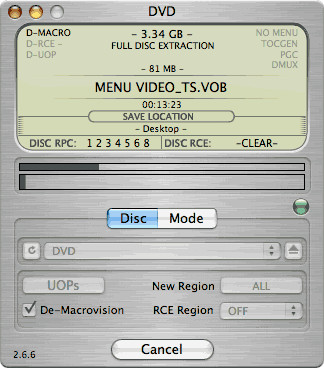
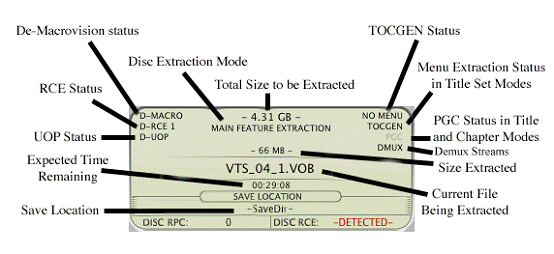
To use Mac The Ripper, you should insert your DVD movie into your DVD drive and launch the Mac The Ripper application. Then, you should set the RCE options if applicable. If Mac The Ripper displays 'DISC RCE: -CLEAR-' after scanning the DVD in the drive, you can leave the 'RCE Region' popup menu on 'OFF', as it is by default. Only (and always) set the 'RCE Region' to 'OFF' when it says that RCE is '-CLEAR-'.
Once you've selected the type of extraction and options you want, you can go back to the 'Disc' tab and click the 'GO!' button (or hit the 'Enter' or 'Return' key) to start the extraction.

Mac The Ripper
Mac The Ripper - dvd extraction

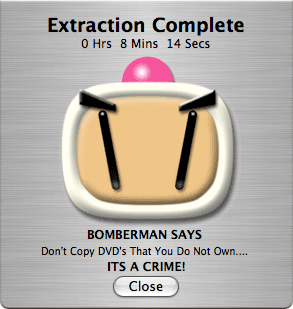
Step 3, finish extract movie from DVD.

Mac The Ripper - extract movie from DVD

You can find a folder in the save location. The output files extracted by MacTheRipper are saved as .VOB format .
Tip: RCE region protection
region 1: North America; U.S. territories; Bermuda
region 2: Europe; Western Asia; Kingdom of the Netherlands; Egypt, Japan, Lesotho, South Africa, Swaziland; British overseas territories, French overseas territories; Greenland.
region 3: East and Southeast Asia
region 4: Oceania; Central and South America; Caribbean; Mexico
region 5: Africa, Central and South Asia, Belarus, India, Mongolia, North Korea, Russia, Ukraine
region 6: Mainland China

Part 2. Convert the .VOB files to other video, audio formats compatible with iPod, PSP
After using Mac The Ripper to minus the copy protections, we can use Aiseesoft Video Converter for Mac to convert .VOB files to formats that compatible with popular players such as iPod, iPhone(iPhone 3G), Apple TV, PSP, Zune, etc.
Step 1:
Download and install Aiseesoft Video Converter for Mac
Note: If you just want to convert .vob file for iPod, You can choose this powerful iPod video converter for Mac. It can convert .VOB file to iPod video and iPod audio on Mac OS with powerful functions and fast converting speed!
Step 2:
Run Aiseesoft Video Converter for Mac, click 'Add File' button to import the .VOB files, choose the output format, then click 'Start' to start the conversion. If you want to put the video on PowerPoint, you can choose .avi as output format.
Tip: Aiseesoft DVD Ripper for Mac can rip DVD to all popular video and audio formats directly. It can rip DVD to videos including MP4, AVI, MOV, M4V, 3GP, MPG, MPEG, FLV, etc and can convert DVD audio to MP3, M4A, AAC, AC3, etc. It is more easy to use than Mac the ripper. You can download it for free and have a try.
Step 3:
After the conversion is finished, You can transfer the converted files to the players. For example, use iTunes to transfer the mp4 video to your iPod, here are the steps:
1. Open iTunes and click "File" to add your converted videos to iTunes library.
2. Plug in your iPod to computer, then iTunes will detect your iPod as a device.
3. Select your iPod device on the left panel of iTunes, click "Movies" tab, check the videos you want to sync and click "Apply", done.
Recommend: DVD Converter Suite for Mac: all-in-one solution to convert DVD and Video to MP4, AVI, FLV, MOV, MKV, ASF, directly for your iPhone, iPod, PSP, iPod touch, Zune, etc. on Mac OS X.

How to make iPhone Ringtones on Mac and Windows for FREE

I have many iPhone Ringtones on my iPhone, and I change them once one day. But I don’t buy them online. I just make iPhone Ringtones myself by Ringtone Maker Shareware. Actually, iPhone Ringtone maker is m4r Ringtone Maker, such as mp3 Ringtone Converter, WMA Ringtone Converter and WAV Ringtone Converter. There are also iPhone Ringtone Converter for Mac or iPhone Ringtone Creator Mac.

Here I will share how to make iPhone ringtones on Windows and Mac.
For Windows:
Firstly, you need download iPhone Ringtone Maker.

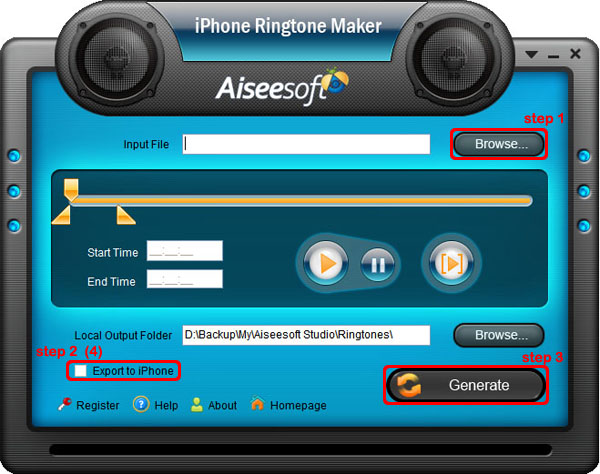
iPhone Ringtone Maker

Step 1: Load Music
Click “Browse” on the right side of “Input File” to find your music that you want to make as your iPhone ringtone and click “Open” to load it into iPhone Ringtone shareware.
Step 2: Choose iPhone Ringtones
1. Drag your “Start Slider” to the beginning of the “Slider Bar” and “End Slider” to the end, then Listen  iPhone Ringtone to listen your whole audio file.>br/>2. a. Drag the “Start Slider” to find where is the beginning of your ringtone and Drag “End Slider” to make an End of it.
b. Type the exact “Start Time” and “End Time” in the box to choose your ringtone.
3. ClickPre-listen  iPhone Ringtoneto pre-listen your ringtone.
4. If you want to put your ringtone directly on your iPhone, just plug your iPhone to your computer and check “Export to iPhone” (4). If you just want to put it on your computer, click “Browse” on the right of “Local Output Folder” to find a place to put it.
Step 3: Generate iPhone Ringtones After you have done the 3 steps, just click “Generate” to make your iPhone ringtones.

For Mac:
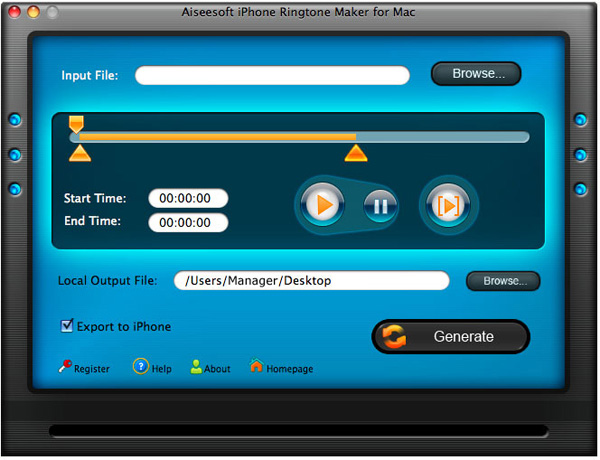
If you are a Mac user, you need to find iPhone Ringtone Converter for Mac or iPhone Ringtone Maker for Mac.
Here I have one for you, just download this iPhone Ringtone Maker for Mac.

iPhone Ringtone Maker for Mac
The process of making your own iPhone ringtone on Mac is the same as on Windows.
Hope you enjoy this DIY process.

2010年6月18日星期五

An Apple Store in the Apple App Store

Want to shop in the Apple Store? Yes, there’s an app for that, too.

Tuesday morning, Apple (AAPL) released a new iOS application that brings its online store to the iPhone and iPod touch. Using it, you can browse, reserve or purchase products, make reservations at the Genius Bar and sign up for in-store workshops and One to One appointments.

A wise move, putting the Apple Store on the company’s mobile devices. Turning every iPhone into a mobile storefront will certainly do nothing but help sales–and streamline the in-store appointment check-in process as well.

At present, the app is available only for the iPhone and iPod touch and only in the U.S., though I imagine we’ll see iPad and international versions soon enough.

2010年6月16日星期三

Analysts Raise iPhone 4 Sales Forecasts From Huge to Ginormous

Overwhelming demand for Apple’s new iPhone 4 on the first day of pre-orders has sent analysts running to raise their expectations for unit sales.

In a research note this morning, Piper Jaffray’s Gene Munster increased his iPhone sales estimates for both the June and September quarters to 9.5 million from 8.5 million, arguing that Apple (AAPL) will likely sell one million iPhone 4s during the device’s first three days on the market. He also noted that the six-month extension on upgrade eligibility pricing that AT&T (T) is offering should significantly juice demand.

“AT&T has pulled forward existing iPhone users’ eligibility for upgrade pricing by up to 6 months,” Munster wrote. “In other words, all early iPhone 3GS buyers will be eligible for upgrade pricing on the iPhone 4, but last year early iPhone 3G buyers were not eligible for the iPhone 3GS upgrade pricing. Specifically, we believe that the 8.4m iPhone users activated at AT&T between the Sept-08 and Jun-09 quarters will be eligible for upgrade pricing.”

Over at UBS, analyst Maynard Um went Munster one better. “We expect the iPhone 4 launch to be larger than the iPhone 3GS launch last year which sold 1 million units in its first 3 days. Although dependent upon initial supply, we see the potential for Apple to sell 1 million units on the first day of launch.”

At this point, Um’s scenario seems the more likely. As of this writing, Apple has taken pre-orders for more than 600,000 iPhone 4s. With more than a week to go until the official launch, it’s entirely plausible that the company will hit that number. And if launch day walk-in sales are anything like they’ve been in the past, it may far exceed it.

2010年6月14日星期一

“for the lolz”: 4chan is Hacking the Attention Economy

Over the last year, 4chan emerged from complete obscurity to being recognized by mainstream media as something of significance. Perhaps it was moot’s appearance at the top of the TIME 100 list. More likely, it was moot’s TED talk on anonymity that tipped it all over.

Read the rest of this post on the original site

2010年6月13日星期日

Where to Download iPhone and Apple TV Firmware Files

Below you can find the direct links to the iPhone Firmware Files for every released firmware version. Please note that if you use Safari you must disable the auto unzip feature. It may be easier to just use Firefox!
iPhone Firmware 1.0.0: iPhone1,1_1.0_1A543a_Restore.ipsw
iPhone Firmware 1.0.1: iPhone1,1_1.0.1_1C25_Restore.ipsw.
iPhone Firmware 1.0.2: iPhone1,1_1.0.2_1C28_Restore.ipsw.
iPhone Firmware 1.1.1: iPhone1,1_1.1.1_3A109a_Restore.ipsw.
iPhone Firmware 1.1.2: iPhone1,1_1.1.2_3B48b_Restore.ipsw.
iPhone Firmware 1.1.3: iPhone1,1_1.1.3_4A93_Restore.ipsw.
iPhone Firmware 1.1.4: iPhone1,1_1.1.4_4A102_Restore.ipsw.
iPhone Firmware 2.0.0 (2G): iPhone1,1_2.0_5A347_Restore.ipsw.
iPhone Firmware 2.0.0 (3G): iPhone1,2_2.0_5A347_Restore.ipsw.
iPhone Firmware 2.0.1 (2G): iPhone1,1_2.0.1_5B108_Restore.ipsw.
iPhone Firmware 2.0.1 (3G): iPhone1,2_2.0.1_5B108_Restore.ipsw.
iPhone Firmware 2.0.2 (2G): iPhone1,1_2.0.2_5C1_Restore.ipsw.
iPhone Firmware 2.0.2 (3G): iPhone1,2_2.0.2_5C1_Restore.ipsw.
iPhone Firmware 2.1.0 (2G): iPhone1,1_2.1_5F136_Restore.ipsw.
iPhone Firmware 2.1.0 (3G): iPhone1,2_2.1_5F136_Restore.ipsw.
iPhone Firmware 2.2.0 (2G): iPhone1,1_2.2_5G77_Restore.ipsw.
iPhone Firmware 2.2.0 (3G): iPhone1,2_2.2_5G77_Restore.ipsw.

Where to Download Apple TV Firmware Files.
Below you can find the direct links to the Apple TV Firmware Files for every released firmware version.
Apple TV Firmware 1.0.0: OS-dot-DMG 1.0.dmg.
Apple TV Firmware 1.1.0: 2Z694-5248-45.dmg.
Apple TV Firmware 2.0.0: 2Z694-5274-109.dmg.
Apple TV Firmware 2.0.1: 2Z694-5387-25.dmg.
Apple TV Firmware 2.0.2: 2Z694-5428-3.dmg.
Apple TV Firmware 2.1.0: 2Z694-5485-1.dmg.
Apple TV Firmware 2.2.0: 2Z694-5499.dmg

2010年6月11日星期五

How to get videos from video sites for free

This is a tutorial that explains the process of backing up a DVD on a PC using DVD Shrink. While there are many software solutions for backing up DVDs, the one on Windows I like is DVD Shrink. On Mac OS X, I like this DVD Copy for Mac.

that can copy DVD movie (D9 to D9, D5 to D5) with the entire movie in 1:1 ratio perfectly. This tutorial will be a concise explanation of how to backup DVD movie to DVD for free. There are many reasons to make a backup copy of DVDs one has purchased, keep reading to learn how to improve the quality of your re-encoded backups.

Step 1, download DVD Shrink
You can download DVD Shrink from: http://www.DVDshrink.org/.
For Mac users, you can download the DVD copy for Mac from here.

Step 2, Run DVD Shrink and insert your DVD movie into the DVD drive
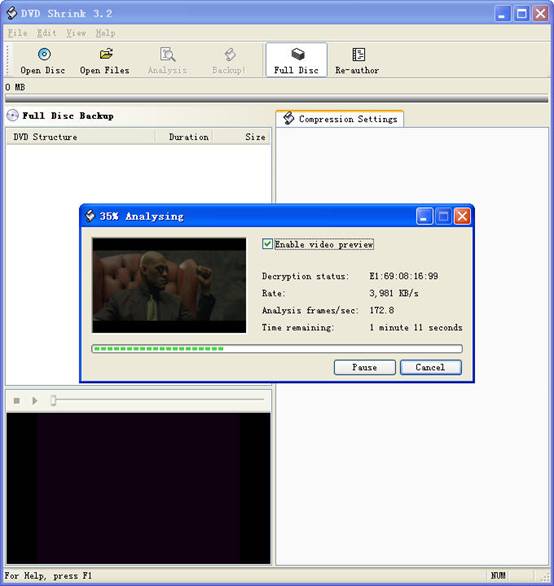
The first thing you will need to do is open the disc. Click on "Open Disk" at the top-left of the program window. A small window will pop up. There is a drop down menu - select the drive and disk that you are going to backup. Then click OK. When you click OK, the DVD will be “analyzed”–this process will last for 1-3 minutes, then DVD Shrink will “suggest” a level of compression.

back up DVD - insert DVD movie

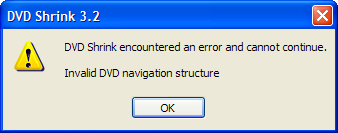
If you receive an error while trying to rip the DVD (like the one shown in the screenshot above), you will need to use another program such as DVD Decrypter to copy the DVD files off of the disc on to your hard drive. You need to minus the copy protections first. Click here to read how to use DVD decypher to minus the copy protections of DVD.

DVD decypher

Step 3. Adjust compression for individual Titles (optional).
DVD Shrink will automatically select the highest possible quality settings that will fit on your disc. You could accept the settings that DVD Shrink chooses. You can also increase the quality of the main movie file by reducing or eliminating other video and audio files on the DVD.
Many modern DVDs will contain bonus footage, trailers, multiple surround sound modes, and other settings that one can reduce or eliminate to improve the quality of the main movie feature.
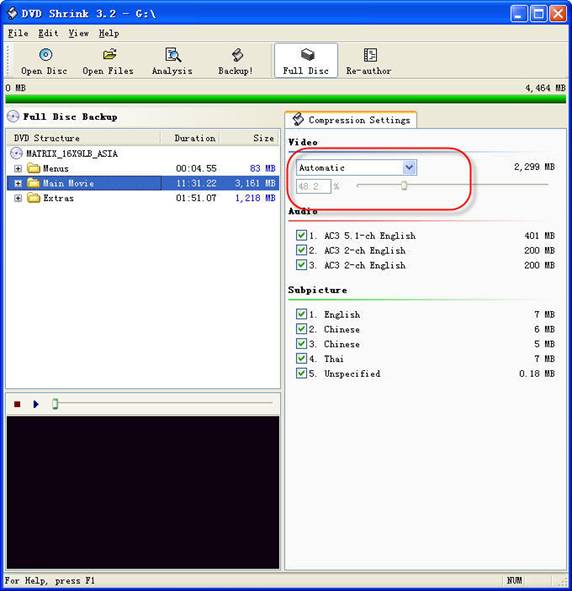
The main movie quality setting is reported to the left of a slider bar in the top right of the screen. In the screenshot below we see that the default setting requires that the main movie be compressed to 48.2% of its original level to fit on the disc. You can increase this percentage to improve the final quality of the backed-up DVD. But the output file will be larger.

backup DVD Movie - setting

The way in which one goes about improving the quality of the main movie will be different depending on your specific needs. For example, when “Dolby Digital” and “DTS” 5.1 audio tracks are available, you can remove “DTS” (to save hundreds of megabytes), you can also choose to preserve “DTS” and reduce or eliminate other items from the DVD.
Some of the settings I made to this particular DVD were:
--Removed “5.1-ch French” audio track (went from 48.2% to 55.4% compression for main movie).
--Replaced certain Titles with “Still Image” (keep reading for more on this).
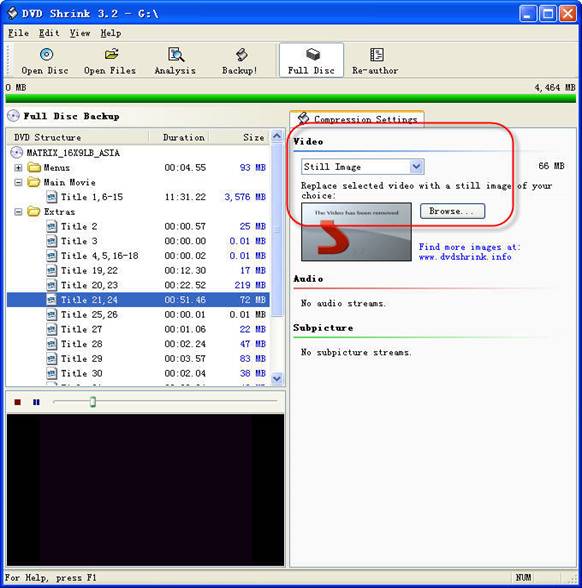
To improve the quality of the main movie, you'll need to reduce or eliminate other DVD features, each called a “Title” in DVD Shrink. Click the “plus sign” next to “Extras” in the menu to view the other titles.

DVD Shrink

The Title I've selected below was 72MB. In this case the video was a “behind the scenes” feature that I did not wish to keep. Since one cannot completely remove any of the “Titles,” the next best thing is to replace them with a still image. In order to do this, select the title you want to replace, and choose “Still Image” from the drop-down menu in the top right. In this case the file went from 72MB to 66MB. The still image is configurable, simply drop an image of your own into the aptly named Still Images directory found under Program Files > DVD Shrink.

Step 4, Burn the re-encoded files to disc.

burn file

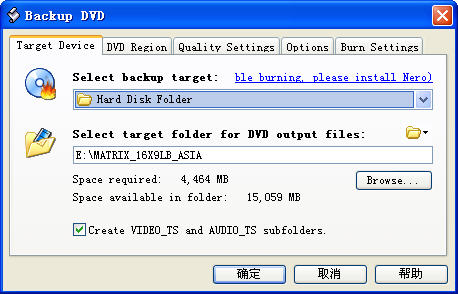
Click “Backup DVD” and Now select the folder where your temporary files will be saved. DVD Shrink needs to save a bunch of files on your computer (that actually compose your movie) so that it can burn that movie back onto another DVD. This is why you had to clear 5 gigs of space on your hard drive. Once the DVD backup has been burned, you can go ahead and delete these temporary files (the program does not do this itself).
You may as well select “Region Free” (default) under the DVD Region tab.
on the Burn Settings tab make sure “Maximum” burn speed is selected in the drop-down menu.
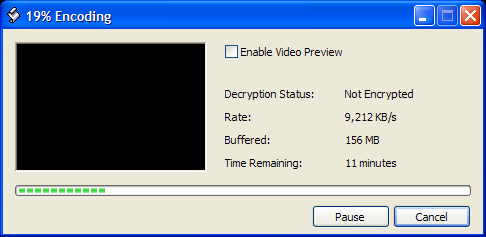
Once you have the settings the way you like them, begin the burn process. You'll see the “Encoding” happening first. There is a video preview that will show you where you are, but I believe that the encoding process goes slower with this setting enabled.

burn DVD movie - Encoding

Once the files have been copied to your hard drive, your original DVD movie will eject from your computer.
You will also have a pop up asking you to put a blank DVD into the DVD burning drive of your computer that you previously selected.
Exchange the original DVD movie for a blank, burnable DVD. Push the blank DVD into the drive. DVD Shrink will begin burning the new DVD automatically in a few seconds. Now you will get a pop up that shows the progress while the program burns your new DVD movie. Once the new DVD has been burned, you will get a window that tells you that it's done. Click OK, close the program, and take your new DVD movie backup. All Done!

Note: DVD Shrink is only for PC users. If you are a Mac user, Please download DVD copy for Mac .

2010年6月9日星期三

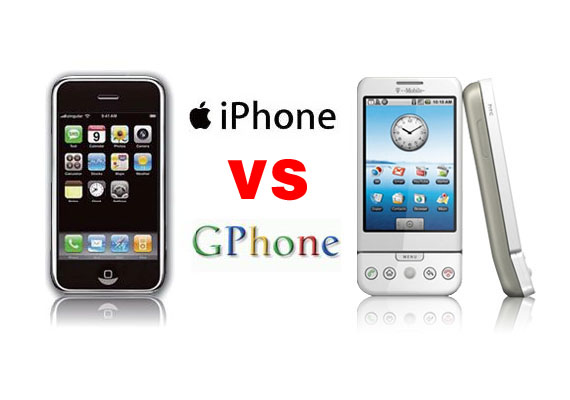
Gphone vs iPhone, which is better

As iPhone is the most talked about smart phone on the planet and it has won millions of hearts of users by his multi-touch screen and other powerful/beautiful design. Of course, iPhone has brought so much money for Apple.
On 23rd, Sep 2008 Google released G1 and claimed that they will have a share of the big market of smart phone.
So, which is better about iPhone and G1? That maybe asked by many people who want to buy a new phone. Here I will give some of opinion about G1 and iPhone.
I will compare these two phones in three aspects, hardware, software, and their performance as a media player.

Gphone vs iPhone

Part 1: Hardware.

1. The price and storage memory
First, the price and storage memory is what I concern most, for iPhone $199 8GB, $299 16GB, for G1 $179 1GB. When you see this you will say G1 is $20 lower than iPhone but G1 is only 1GB and you will pay another $40 for an 8GB SD Card. So I think iPhone win in this round.

2. Appearance
iPhone is 133 grams/4.7 ounces and G1 is 158 grams/5.57 ounces. G1 is taller while iPhone is thinner (G1: 117.7*55.7*17.1, iPhone: 115.5*62.1*12.3).

3. Mobile Network
For mobile Network, they both have Quad Band GSM/EDGE UMTS, but G1 uses T-Mobile-only US 3G and iPhone uses AT&T-only US 3G.

4. Touch screen and input
About touch screen display, iPhone has Multi-touch 3.5 480*320 163 ppi, but G1 does not support mulit-touch. And in input aspect, G1 uses keyboard, Trackball, 6 buttons and touch screen, while iPhone has home button and multi touch screen.

5. Expansion
In expansion ports, G1 uses SD, ExtUSB(USB+audio) but iPhone has headphone, Dock connector (USB+ audio, video, remote). They have the same wireless WiFi 820.11b/g Limited Bluetooth 2.0 EDR.

6. Others
About hardware, the two phones perform almost the same and the only big difference is the iPhone uses multi-touch screen and G1’s camera is better than iPhone. And iPhone has a 1400Ah battery with 300 hours standby time but G1 only has a 1150Ah battery with 5 hours talk time and 130 standby.

Part 2: Software.

iPhone and G1 are both using Webkit as their browser engine. In media playback aspect, iPhone supports music, audiobook, video, streaming, downloads and rental, while for G1, only music playback. G1 has Android Market as its third party software store while iPhone has iPhone app store. G1’s platform is Modified Java development and iPhone uses Cocoa Touch.

Part 3: Their performance as media player.

G1 supports H.264, 3GPP, MPEG4, Codec 3GP video and MP3、AAC、AAC+、WMA、MPEG4、WAV、MIDI、REAL、AUDIO、OGG audio formats.
iPhone supports AAC,Protected AAC,MP3,MP3 VBR,Audible (formats 1, 2, 3), Apple Lossless, AIFF, WAV audio formats and H.264 (up to 1.5Mbps), MPEG-4 (up to 2.5Mbps) 640*480, 30fps, AAC-LC (up to 160 Kbps), 48kHz dimensional sound .m4v, .mp4 and .mov format.

Amazon MP3 Store allows you to download 6 million songs without the DRM protection, 89 cents per song. It is similar with the Apple iPhone, you need to pay for the video and audio sources on the Apple store. But how to get free sources for your G1.

For iPhone and G1 you can buy songs and videos from store, which is really expensive, and you can also make songs and videos for your iPhone and G1 by yourself, you just need to convert your DVDs and videos to mp4 format and then you can put them easily to your iPhone and G1.

Here I recommend you Aiseesoft DVD Converter Suite, it includes Best DVD Ripper, Total Video Converter and iPod to Computer Transfer.
For Mac user, I recommend you Aiseesoft DVD Converter Suite for Mac, it includes DVD Ripper for Mac and Total Video Converter for Mac.

2010年6月8日星期二

New “The Twilight Saga: Eclipse” Trailer

Presented last night at the MTV Movie Awards, here’s the latest trailer for all you Twihards out there for “The Twilight Saga: Eclipse,” the third installment of the movie series about a sparkly vampire and the grumpy woman he loves.

Guess what? Bella and Edward are still not together!

2010年6月6日星期日

Smart Phones: Will There Be More Than Two Mobile Platforms?

Right now, the smart phone landscape seems completely cluttered with software platforms: IPhone OS, Android, Windows, Symbian, Maemo, BlackBerry OS, WebOS and a number of others. But that’s not likely to be the case forever. Some of the players will end up being exposed as pretenders.

Ashok Kumar, an analyst with Rodman & Renshaw, made the fascinating (and highly controversial) assertion in a research note on Monday that when the dust settles, the market could be down to just two players: Google (GOOG) Android and Apple’s (AAPL) iPhone.

Read the rest of this post on the original site

House Tax Panel Urged to Legalize Online Gambling

Supporters of legalizing Internet gambling told a House panel Wednesday that to do so would raise $42 billion for the federal government over the next 10 years.

Under companion bills from Rep. Barney Frank (D., Mass.) and Jim McDermott (D., Wash.), most of that revenue would come from income taxes collected on individuals’ winnings.

But Mr. McDermott’s bill would also impose an eight percent tax on online gambling deposits, paid by the operators of gaming websites.

“We are sending a multi-billion dollar industry offshore and underground. As a result, we are making tax criminals of Americans who can’t declare their online winnings to the IRS,” Mr. McDermott told the House Ways and Means Committee during a Wednesday hearing.

Read the rest of this post on the original site

2010年6月4日星期五

How to Convert VOB to MPG

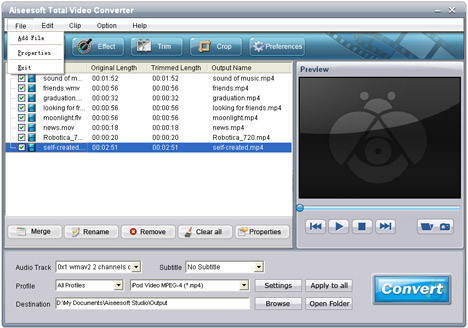
Now download Aiseesoft Total Video Converter, then follow the tips below to learn how to convert VOB to MPG with Aiseesoft Total Video Converter.

1. Install and launch Aiseesoft Total Video Converter

Install and launch Aiseesoft Total Video Converter, add your VOB file by clicking Add File in the File menu

Convert VOB to MPG

2. Select output format and destination folder

In Profile drop-down list, you may select output format. Press Browse… to select the destination folder for output MPG files.

3. Set professional parameters

After selecting certain output format, click Settings to set output video and audio parameters. Save as… button can assist you to reserve well-customized profile.

4. Start the VOB to MPG conversion

Finally, click Start to begin VOB to MPG conversion. After a few minutes, the whole process of VOB file converting to MPG file is finished and you can enjoy your wanted MPG file on your player now.

Aiseesoft Total Video Converter has many other useful video editing functions like video effect designing, video trimming and cropping etc. More information at: Convert VOB to MPG.

2010年6月2日星期三

How to Convert AVCHD Video

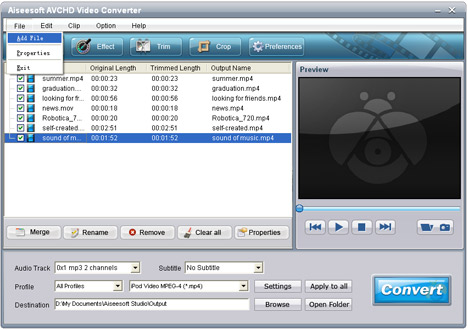
Follow the tips below and learn how to convert AVCHD video with the professional AVCHD Video Converter.

1. Free download Aiseesoft AVCHD Video Converter, install and launch.

2. Press "Add File" to add your wanted files.

Convert AVCHD Video

3. Choose the proper output destination and the target video format.

4. Click "Start" button to begin conversion. A few minutes later, you can transfer the converted video files to your portable devices like iPod, iPhone, PSP.

2010年6月1日星期二

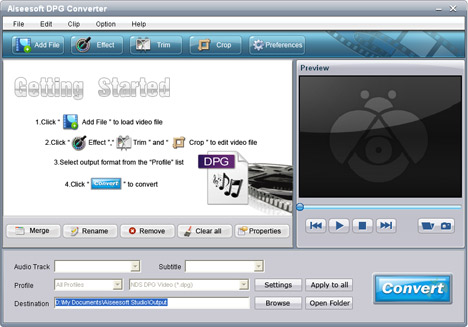
How to Convert Video to DPG

It has an unparalleled conversion speed with high quality! It is quite easy to use, only needs a few intuitive steps.

Preparation: Free download the video to DPG conversion software and install it.

how to  convert video to DPG

Step 1: Click Add file button to add video files you want to convert to DPG. Several video files input are supported.

Step 2: Choose the output format DPG and output folder from Profile, Destination drop-down lists respectively.

Step 3: Press Start to convert video to DPG at once.
After conversion finished automatically, you could get desired video in output directory.

Optional: Edit function

Besides converting function, this video to DPG Converter has powerful editing features, such as crop, trim and effect…

The output files quality is wonderful enough and the converting process is in its simplicity. Learn more at: How to Convert Video to DPG